How can we help?

Adding custom CSS/JavaScript

Custom CSS changes the colors, fonts, layout and other visual elements of your knowledge base so it matches your brand. Custom JavaScript runs on every page of your knowledge base, so you can use it to add tracking or analytics code from tools like Google Tag Manager or PostHog.

You can add custom CSS and JavaScript only to a custom theme. System themes can't be edited, so if your knowledge base uses one, clone it first to create a custom theme.

Adding custom CSS/JavaScript

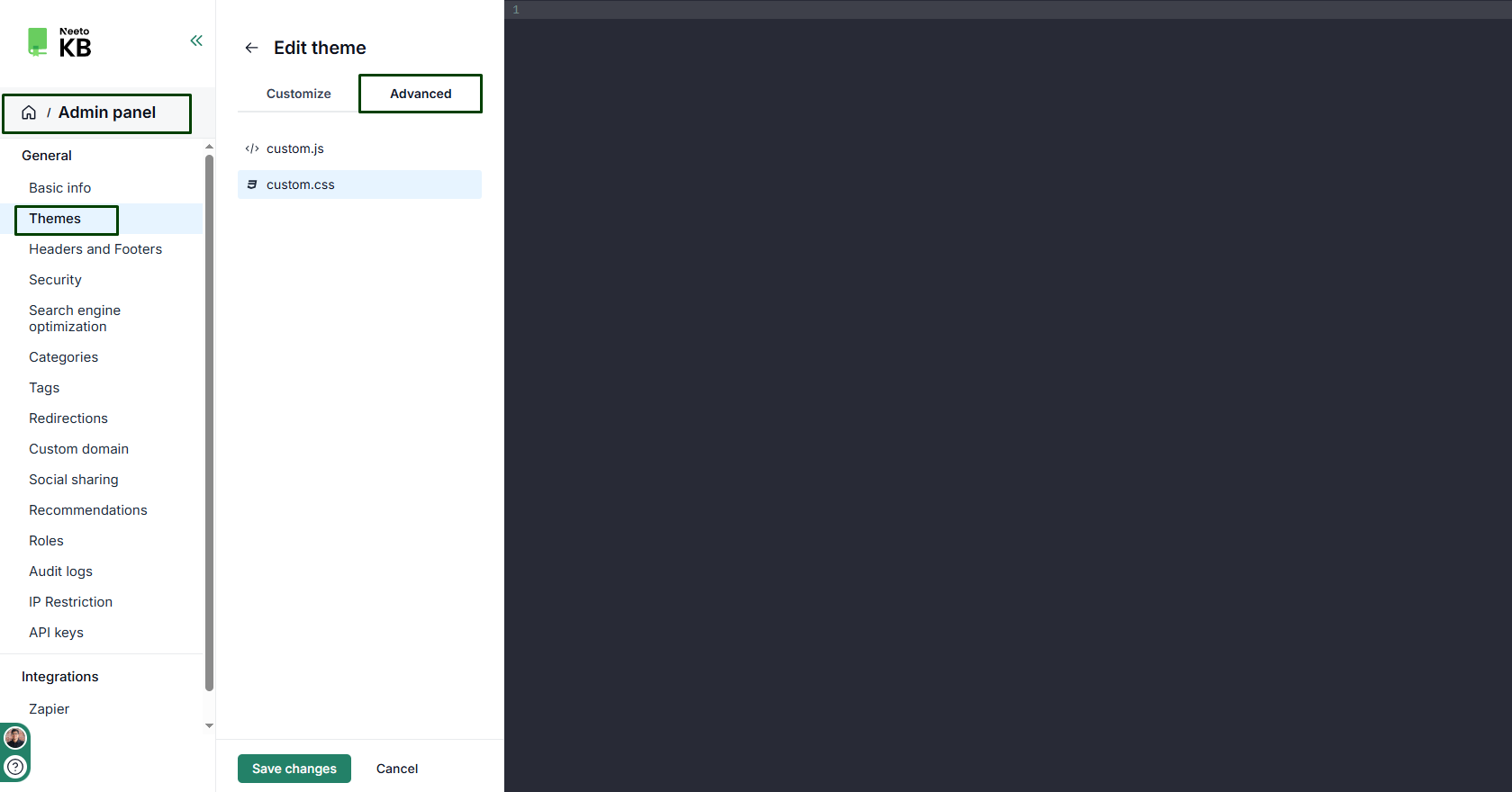
  1. Go to Admin panel > Themes.

  2. If your knowledge base uses a system theme, click the three-dot menu on that theme, then click Clone. The copy appears under Custom themes.

  3. Click the three-dot menu at the bottom right of the custom theme, then click Edit.

  4. Open the Advanced tab.

  5. Click custom.css to add CSS, or custom.js to add JavaScript.

  6. Paste your code.

  7. Click Save changes.

When you paste JavaScript, leave out the <script> and </script> tags and paste only the code between them. NeetoKB already places custom JavaScript inside a script tag, so the code won't run if the tags are added a second time.

Applying the theme

Your knowledge base only uses your custom CSS and JavaScript while the custom theme is applied. If the theme already has a check mark on the Themes page, it's applied, and your changes are live as soon as you save.

  1. Click the back arrow next to Edit theme to return to the list of themes.

  2. Hover over the custom theme and click Apply.